





Connect Claude with enterprise-managed authorization
Contents
Claude supports enterprise-managed authorization for the PostHog connector. Claude calls it managed authorization. An admin connects PostHog once, and members can use the PostHog MCP server in Claude without signing in to PostHog themselves.
Enterprise-managed authorization is available to organizations on the Scale or Enterprise platform add-on.
Before you start
- In Claude: a Team or Enterprise plan, and the Owner role in your Claude organization. Only owners can set up managed authorization for a connector.
- In PostHog: the Scale or Enterprise platform add-on, and admin access to your PostHog organization.
- Matching email addresses. PostHog connects each Claude member to the PostHog user with the same email address. A member works only if they already have a PostHog account in your organization under the email they use in Claude. PostHog does not create accounts, so invite members or provision them with SSO or SCIM first.
If the PostHog connector in Claude has no Managed authorization option, it isn't available for PostHog in your Claude organization yet. Contact us.
Choose an identity source
Claude offers two identity sources. If your organization signs in to Claude through Okta, both work.
| Claude-issued | IdP-issued through Okta | |
|---|---|---|
| Who vouches for the user | Claude, under an issuer URL unique to your Claude organization | Your Okta org |
| What you need | No identity provider or SSO | Okta with Cross App Access, and Claude sign-in through Okta |
| Where access is controlled | Claude roles, and PostHog membership | Okta assignments and scopes, and PostHog membership |
| Setup effort | A few minutes, in Claude and PostHog | Longer, in Okta, Claude, and PostHog |
Claude-issued identity
With Claude-issued identity, Claude tells PostHog which member of your Claude organization is signed in. PostHog must trust your Claude organization's issuer URL. You can set this up in two ways:
- Automatic setup: you approve Claude on a PostHog consent screen, and Claude registers its issuer URL for you.
- Manual setup: you copy the issuer URL from Claude and paste it into PostHog.
Automatic setup
Claude may not offer automatic setup for PostHog in your Claude organization yet. If it doesn't, use manual setup.
To approve Claude, you must be an admin of the PostHog organization. The organization needs the Scale or Enterprise add-on and at least one verified domain. If it only admits emails on its verified domains, your PostHog email must be on one of them.
- In Claude, go to Organization settings → Connectors and select the PostHog connector.
- On the Configuration tab, click Set up next to Managed authorization, and choose Claude-issued under Identity source.
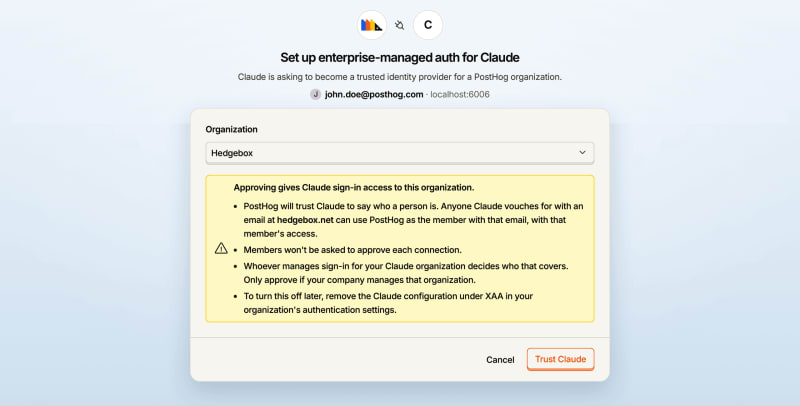
- Choose to connect PostHog automatically. Claude opens the PostHog consent screen. PostHog asks you to sign in again if your last sign-in isn't recent.
- Under Organization, select your PostHog organization. If you can't select it, open the list to see why.
- Read what approving turns on, then click Trust Claude.
- Back in Claude, click Test connection, then Enable and continue, and choose which roles get the PostHog connector.
PostHog then shows a configuration named Claude under XAA authentication, tagged Set up from Claude. It covers all of your organization's verified domains. You don't fill in a tenant ID anywhere: Claude stores your PostHog organization ID for you, and PostHog accepts Claude's ID-JAGs only for that organization.
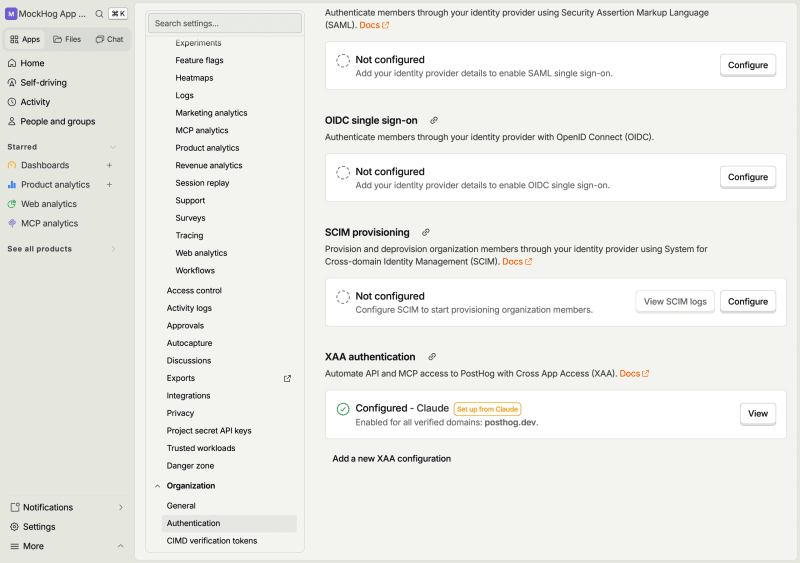
The configuration is read-only in PostHog. Click View to see it. To change it, run the automatic setup again from Claude, which replaces the issuer. To stop trusting Claude, delete the configuration.
Manual setup
1. Copy the issuer URL from Claude
- In Claude, go to Organization settings → Connectors and select the PostHog connector.
- On the Configuration tab, click Set up next to Managed authorization.
- Under Identity source, choose Claude-issued.
- Copy the Issuer URL. It looks like
https://identity.anthropic.com/issuers/<id>and is unique to your Claude organization.
Leave this screen open. You come back to it in step 3.
2. Trust the issuer in PostHog
- In PostHog, go to Organization settings → Authentication.
- Under Authentication domains, add and verify your email domain if it isn't verified yet. See the SSO docs for the steps.
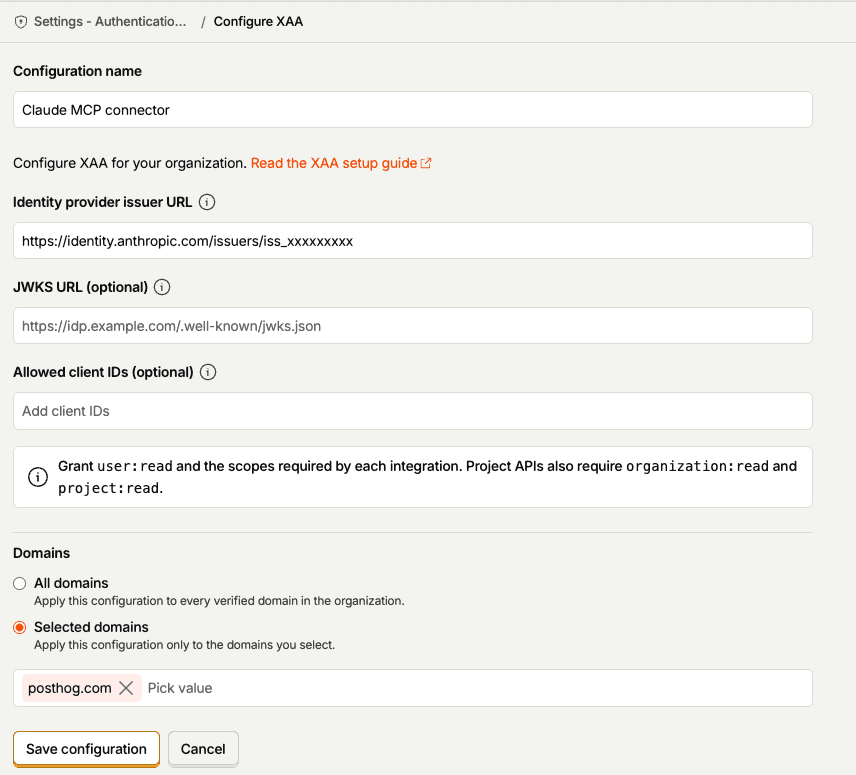
- Find XAA authentication and click Configure.
- Give the configuration a name, such as
Claude MCP connector. - Paste the issuer URL from Claude into Identity provider issuer URL.
- Under Domains, choose Selected domains and pick the domain your Claude members use.
- Click Save configuration.
You only need to fill in the issuer URL and the domains. Leave JWKS URL and Allowed client IDs empty. PostHog finds Claude's signing keys from the issuer URL.
3. Test and enable in Claude
- Back in Claude, you don't need to set anything on the Tenant ID screen. Leave it empty. PostHog picks your organization from the issuer URL and the member's email domain.
- Click Test connection. Claude shows which step failed, if any, and what PostHog returned.
- Click Enable and continue.
- Choose which roles get the PostHog connector. All roles get it by default.
If Claude lets you choose scopes for the connection, see choosing scopes.
IdP-issued identity through Okta
With IdP-issued identity, your Okta org decides which members can use the PostHog MCP server in Claude, and with which scopes. Okta uses Cross App Access (XAA) for this. Your members must sign in to Claude through Okta.
PostHog isn't in the Okta Integration Network yet, so you use the PostHog app you created in Okta for SSO. Before you start, you need:
- In Okta: an org with SSO and Cross App Access, and the super admin role.
- A PostHog app in Okta for SSO. Cross App Access builds on SSO, so set up SAML or OIDC with Okta first.
1. Turn on Cross App Access for your PostHog app in Okta
- In the Okta Admin Console, go to Applications → Applications and select your PostHog app.
- Open the Machine Assignments tab. In the Callers tile, click Edit next to Cross App Access (XAA).
- Select Enable, then fill in:
- Issuer URL:
https://oauth.posthog.com - Audience/tenant ID:
https://oauth.posthog.com - Scopes: the PostHog scopes members may use. See choosing scopes.
- Issuer URL:
- Click Save.
2. Register Claude as an AI agent in Okta
Start Claude's setup first, because it gives you the values Okta needs:
- In Claude, go to Organization settings → Connectors, select the PostHog connector, and click Set up next to Managed authorization on the Configuration tab.
- Under Identity source, choose IdP-issued, confirm your Okta connection, and follow Claude's setup guide.
In Okta, Claude's guide has you go to Directory → AI agents, click Register AI agent, link it to the app your members use to sign in to Claude, and enter the client ID Claude shows on the Client registration tab. Activate the agent when you're done.
3. Connect Claude to PostHog in Okta
- In Directory → AI agents, select the Claude agent and open Resource connections.
- Click Add resource connection, then set:
- Application instance: your PostHog app.
- Claude client ID registered in PostHog: the client ID Claude uses with PostHog, which Claude's setup guide shows.
- Resource identifier:
https://mcp.posthog.com/mcp, orhttps://mcp-eu.posthog.com/mcpif you pin the EU region. - Scopes: Allow specific scopes, and select the scopes from step 1. See choosing scopes.
- Click Add.
- On the agent's User access tab, assign the users or groups who should get PostHog in Claude.
4. Trust your Okta org in PostHog
- In PostHog, go to Organization settings → Authentication.
- Under Authentication domains, make sure your email domain is verified.
- Find XAA authentication and click Configure.
- Set Identity provider issuer URL to your Okta org URL, for example
https://acme.okta.com. Use the org authorization server, not a custom one such as/oauth2/default, because Okta issues these assertions from the org server. - Under Domains, choose your email domain, then click Save configuration.
As with Claude-issued identity, you only need to fill in the issuer URL and the domains. Leave JWKS URL and Allowed client IDs empty.
5. Test and enable in Claude
- Back in Claude's setup, you don't need to set anything on the Tenant ID screen. Leave it empty.
- Click Run test. Claude shows which step failed, if any, with what Okta and PostHog returned.
- Enable the connector and choose which roles get it.
Okta limits
Okta limits SSO-based Cross App Access to 250 ID-JAGs per user, per resource app, per month. Claude requests a new ID-JAG each time its PostHog access token expires, which is every 2 hours, so heavy daily use can reach that limit. Okta for AI Agents raises it.
Choosing scopes
Start with the recommended scopes. They're the ones the PostHog MCP server grants by default when someone connects with OAuth. API scopes explains what each one covers.
With Okta, enter the scopes on the PostHog app in step 1, and allow them in the resource connection in step 3. The access token gets only the scopes that both Okta granted and Claude asked for. To add a scope later, add it in both places. Members get it with their next token, within 2 hours.
PostHog offers more than 100 scopes, so you can't list all of them in Okta. The recommended scopes are fewer than 100.
What members see
The next time a member uses PostHog in Claude, Claude connects for them. They don't see a PostHog sign-in prompt. Each connection acts as that member in PostHog, with their own permissions, limited to the granted scopes.
Revoking access
- In Claude: removing a member from your Claude organization stops new tokens.
- In Okta: unassign a user from the agent, or remove the resource connection. Claude can't get new tokens for them.
- In PostHog: removing a member from your PostHog organization, or deactivating them, stops their access on the next request.
- For everyone: in Claude, choose Disable under the connector's Managed authorization, or delete the XAA configuration in PostHog. With automatic setup, delete the configuration tagged Set up from Claude.
A token that Claude already has stays valid for up to 2 hours, unless you remove the member in PostHog.
Troubleshooting
| Error | Where | What to check |
|---|---|---|
invalid_target | Okta | The resource identifier Claude requested doesn't match the resource connection. |
unauthorized_client | Okta | A scope Claude requested isn't allowed in the resource connection. |
invalid_grant (ID-JAG could not be verified) | PostHog | The issuer URL in PostHog doesn't match the Claude issuer URL or your Okta org URL, or the member's email domain isn't selected under Domains. |
invalid_grant (ID-JAG sub is not an active member…) | PostHog | The member's email in Claude or Okta doesn't match a member of your PostHog organization. |
invalid_grant (ID-JAG client_id doesn't match the authenticating client) | PostHog | With Okta, the Claude client ID registered in PostHog in the resource connection isn't the client ID Claude uses with PostHog. |
invalid_client | PostHog | Claude couldn't authenticate to PostHog. Contact us. |
access_denied | PostHog | Your PostHog organization doesn't have the Scale or Enterprise add-on. |
issuer_in_use | PostHog, during automatic setup | Your organization already trusts this issuer in another XAA configuration, for example from an earlier manual setup. Delete that configuration in PostHog, then try again. |
insufficient_scope | PostHog MCP server | The connection is missing user:read, organization:read, project:read, or a scope a tool needs. |
For every PostHog error code and what PostHog checks, see the ID-JAG reference.